Installing and setting up
1. Install Calinsight
Section titled “1. Install Calinsight”Get it from the Mac App Store and open it from your Applications folder.
The icon appears in the menu bar. Calinsight does not appear in the Dock.
2. Allow access to Calendars and Reminders
Section titled “2. Allow access to Calendars and Reminders”macOS asks for permission the first time you open Calinsight. Choose Allow.
Calendars and Reminders are granted separately. If you allow only one of them, the features for that side still work. To change your answer later, see Troubleshooting.
3. Start Calinsight at login
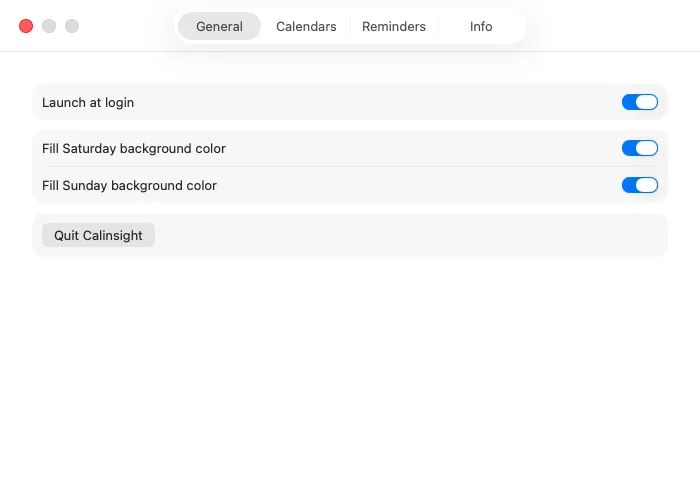
Section titled “3. Start Calinsight at login”In Settings (⌘,), open the General tab and turn on Launch at login so Calinsight is in the menu bar every time you start your Mac.
4. Choose which calendars to show
Section titled “4. Choose which calendars to show”In the Calendars tab, select Active for the calendars you want to see. Hiding the ones you rarely use makes the month grid, the list and the dashboards easier to read.
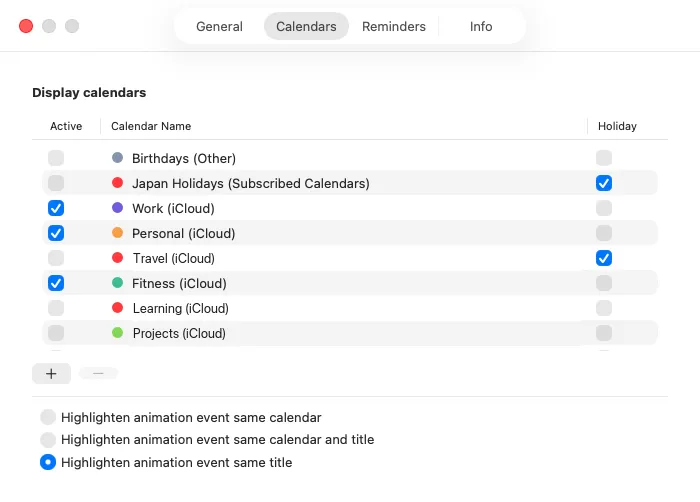
Reminder lists work the same way in the Reminders tab.