
You can add up the hours in a personal Google Calendar by week, month and year, even though Time Insights is a Google Workspace feature. On a Mac, Calinsight, a menu bar calendar for Mac, reads the calendars you have added to macOS and shows the hours in each calendar and the change from last week. There is no spreadsheet to rebuild each time, the adding up is done entirely on your Mac, and it is a one-time purchase.
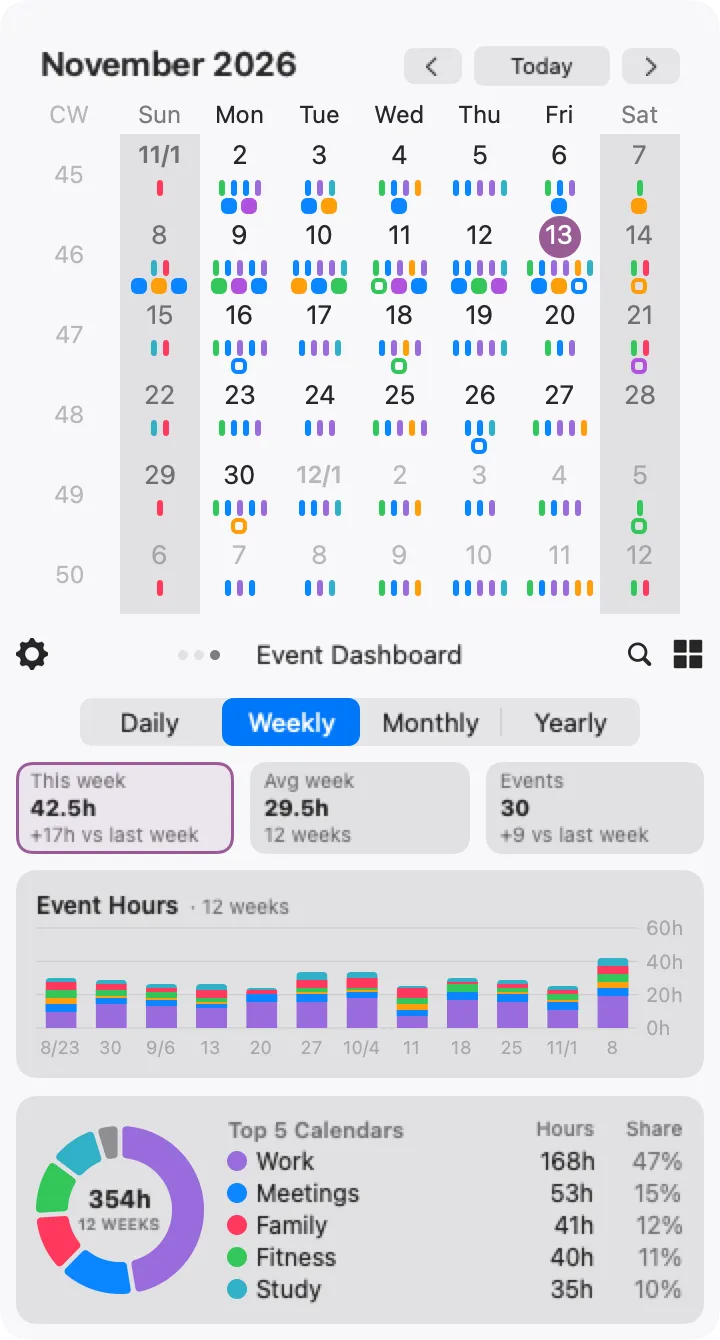
What you get
- This week: the hours in your events this week, and the difference from last week
- Avg week: your average over the weeks in the chart
- A bar chart: hours per week, stacked by calendar
- Top 5 Calendars: the five calendars that took the most time, with hours and share
Switch between Daily, Weekly, Monthly and Yearly and the same numbers are shown for that period. Click the Events tile to see counts instead of hours. Calendars from iCloud and Exchange are added up in the same view, so personal and work time can sit side by side.
Get Calinsight on the Mac App Store One-time purchase · No subscription · No account
Three ways to total your hours without Time Insights
| Export and total it yourself | Connect an online analysis service | Calinsight on your Mac | |
|---|---|---|---|
| Work by hand | Convert the export and add up the durations | None after setup | None after setup |
| When your calendar changes | Export and total again | Updates on its own | Updates on its own |
| Extra service to connect | None | Your Google account, connected to the service | None: it reads the calendars already in macOS |
| Where the adding up happens | On your computer | On the service’s servers | On your Mac |
Google Calendar exports calendars from its website as .ics files (Google’s instructions). An .ics file is not a spreadsheet, so the first route means converting it and totalling the durations yourself, each time you want fresh numbers. That is fine for a one-off look at a single month. For totals that stay current without sending your calendar to another service, Calinsight is the least work of the three.
Who gets Time Insights
Time Insights is for work and school accounts: it comes with some Google Workspace editions, an administrator can turn it off, and it can only be viewed on a computer (Google’s help, checked November 2026). A personal Google account does not have it.
If your work account has it, use it there. Calinsight is not a copy of it: it totals your hours by calendar, and does not sort meetings by type or show who you meet with most. What it covers is the calendars Time Insights does not reach: a personal account, or personal and work calendars that you want to see together.
Set it up on your Mac
- Open System Settings → Internet Accounts, add your Google account and turn on Calendars. Your Google calendars now appear in the Calendar app.
- Get Calinsight from the Mac App Store and open it from the menu bar. macOS asks whether Calinsight may access your calendars; allow it.
- Click the view name in the middle of the window, or press ⌘3, to switch to the Event Dashboard.
- Pick Daily, Weekly, Monthly or Yearly.
Calinsight reads the calendars macOS already syncs, so there is no separate sign-in.
The totals follow your calendars
Time Insights sorts your time by type of meeting. Calinsight sorts it by calendar, so what you can tell apart depends on how your events are filed.
An example: on a day with four hours of meetings and six hours of focused work, you get “Meetings 4 h” and “Focus 6 h” if those events sit in two calendars. If both are in one calendar called Work, you get “Work 10 h”.
If everything is in one calendar and you want a breakdown, create a calendar for each kind of time you want to see, in Google Calendar or in the Calendar app, and file new events there. Past events stay where they are unless you move them.
How the hours are counted
- The hours are the scheduled length of each event. It is not a timer.
- All-day events are counted as events, not hours.
- An event that crosses the edge of a period counts only the part inside it.
- Overlapping events each count in full.
- Only the calendars you have set to Active in Settings are included.
What it does not do
- It does not show who you meet with most, or sort meetings by type.
- It does not move or reschedule anything. You create and edit events and reminders yourself.
- It is Mac-only. There is no iPhone or web version.
What happens to your calendar data
The adding up is done entirely on your Mac, with no extra upload to an analysis service. Your Google calendar keeps syncing through macOS, as it does for the Calendar app; that does not go through Calinsight. Calinsight has no account and no analytics. What it sends out is limited to event locations: the text you type or the place you choose, and the coordinates of an event that already has a map, go to Apple Maps for suggestions and the map. The details are in the privacy policy.